 ReadoutIQ

1Set up
A couple of minutes, once. Transcription runs on your device and needs no account. The minutes, Chat and the other AI features use an AI service on your own API key.
- Open Settings (the gear icon) and go to AI service.
- Read What is sent to the AI service. It names the company that would receive your text, exactly what is sent and what never is.
- Choose Anthropic, OpenAI or OpenRouter and paste that provider's API key. Once the key is saved, the list of models loads from the provider: pick one, or type a model ID.
- Check Languages. Auto is the default: transcription uses your device language, and the minutes match the language spoken.
The first time anything would be sent to a provider, ReadoutIQ asks your permission on that same screen. Until you agree, it sends nothing. You can withdraw permission there at any time.
The transcription model sets itself up automatically: about 550 MB on a Mac or a recent iPhone or iPad, and about 142 MB on older devices. Until it is ready, Apple's recogniser transcribes instead.
2Record a meeting
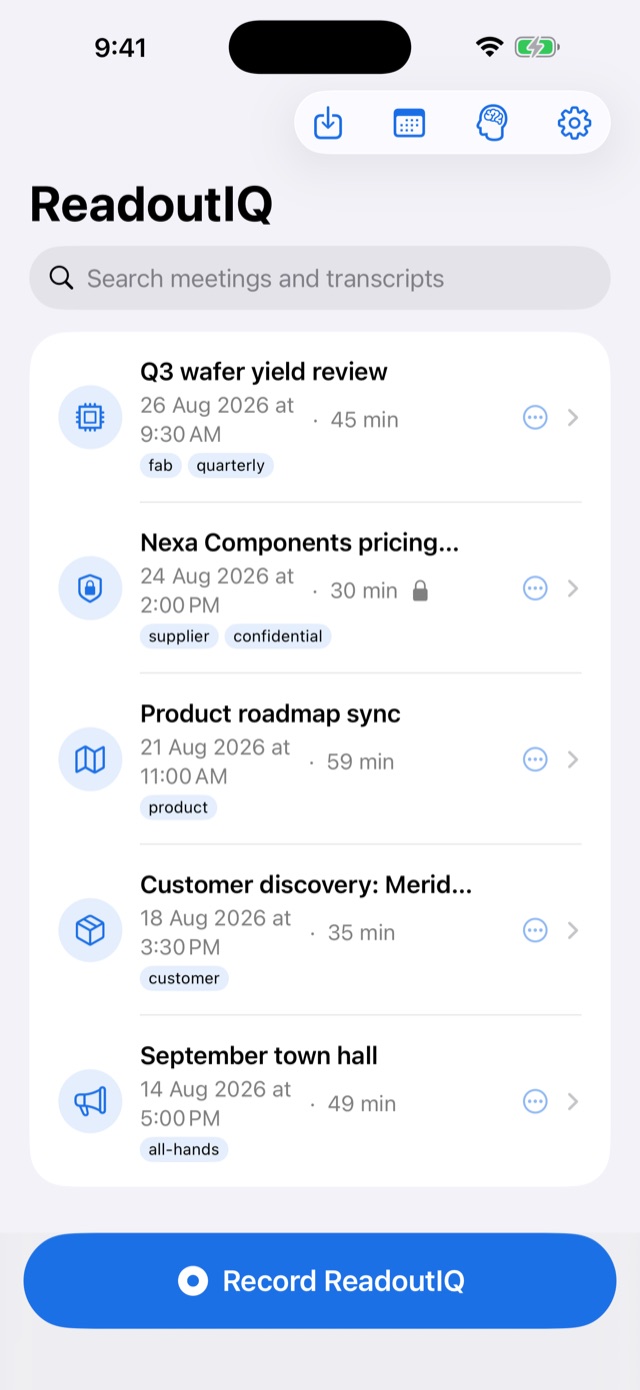
- Tap the blue Record ReadoutIQ button at the bottom of your list of meetings. Or say “Hey Siri, record ReadoutIQ”.
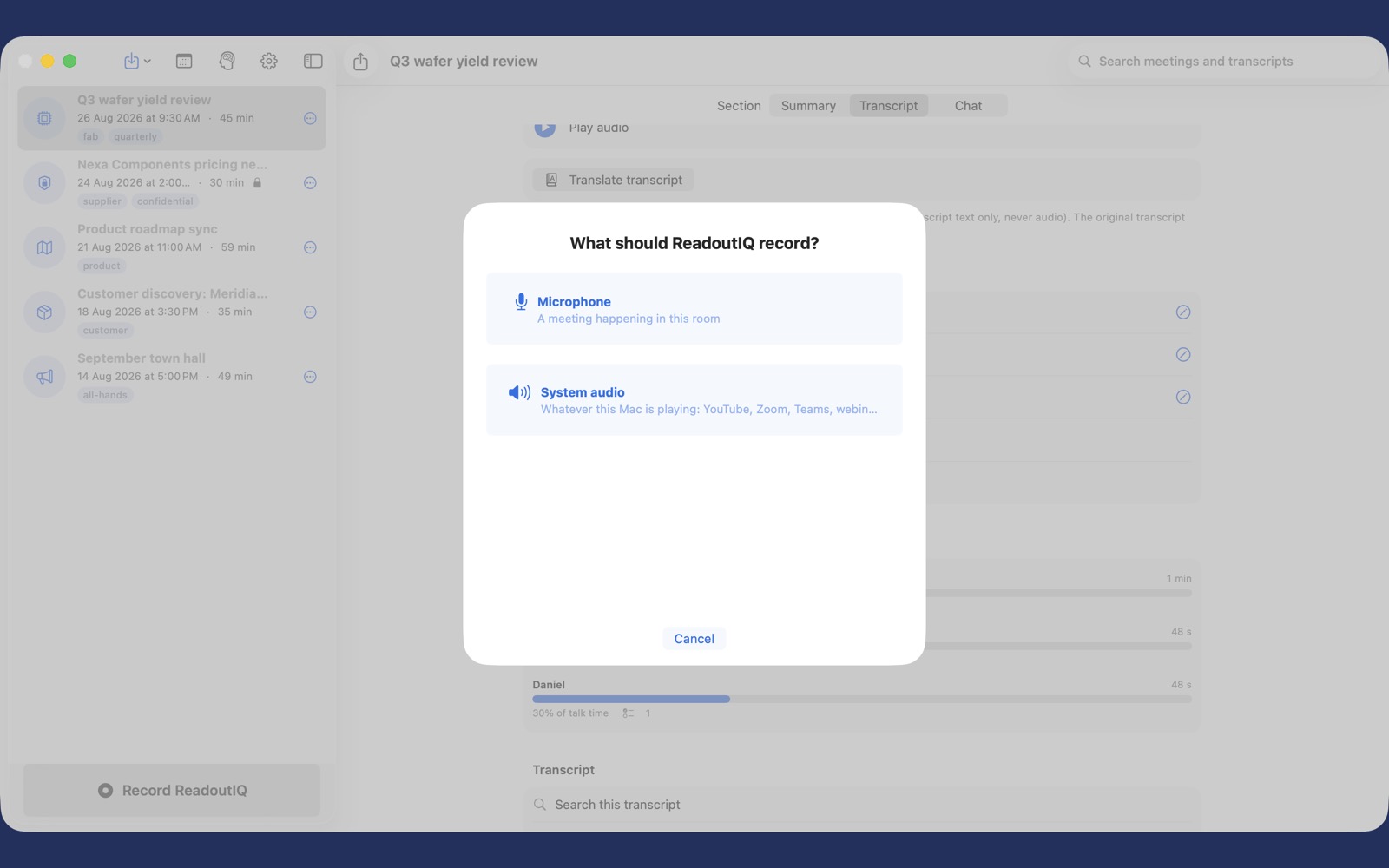
- On the Mac, choose a source: Microphone for a meeting in the room, or System audio for anything playing on the Mac, such as a video call or a webinar.
- Watch the timer count and a glimpse of the live transcription appear. Tap the large circle to pause and resume. Paused time is not recorded.
On iPhone, recording carries on in the background, with a Live Activity on the Lock Screen and in the Dynamic Island. Abort throws the recording away after asking you to confirm.
Help it hear names correctly
Open Prompt & Language at the bottom of the recording screen to describe what you are recording, add keyword hints such as acronyms and names, and set the language for this meeting's minutes. For a meeting in two languages, set Also spoken to the second one. Names and terms you use all the time belong in Settings, Glossary.
Let your calendar fill in the details
If your calendar says a meeting is on now, or starts within ten minutes, the recording takes its title and the attendees' names help transcription. A blue calendar chip shows which event was picked up; change it under Linked event, or turn calendar awareness off in Settings. Calendar access is optional and read on your device only.
Recording a call on the Mac
System audio needs a one-time permission: open System Settings, Privacy and Security, Screen and System Audio Recording, allow ReadoutIQ, then quit and reopen it.
Only one app can use the microphone at a time. If a phone call, Siri or live translation in another app takes it, ReadoutIQ pauses and tells you straight away, with a notification and on the recording screen. When the other app lets go it often carries on by itself; if it is still paused, open ReadoutIQ and tap the circle.
3Get the minutes
- Tap the circle to pause.
- Tap Transcribe & Summarise.
The meeting opens straight away with its transcript. Speaker labelling and the minutes carry on in the background, and a banner on the Summary tab shows how far along they are.
Long meetings are no wait: while you record, ReadoutIQ transcribes each ten-minute stretch as it goes, so even after two or three hours the transcript is ready in about a minute.
4Read the meeting
Every meeting has three tabs.
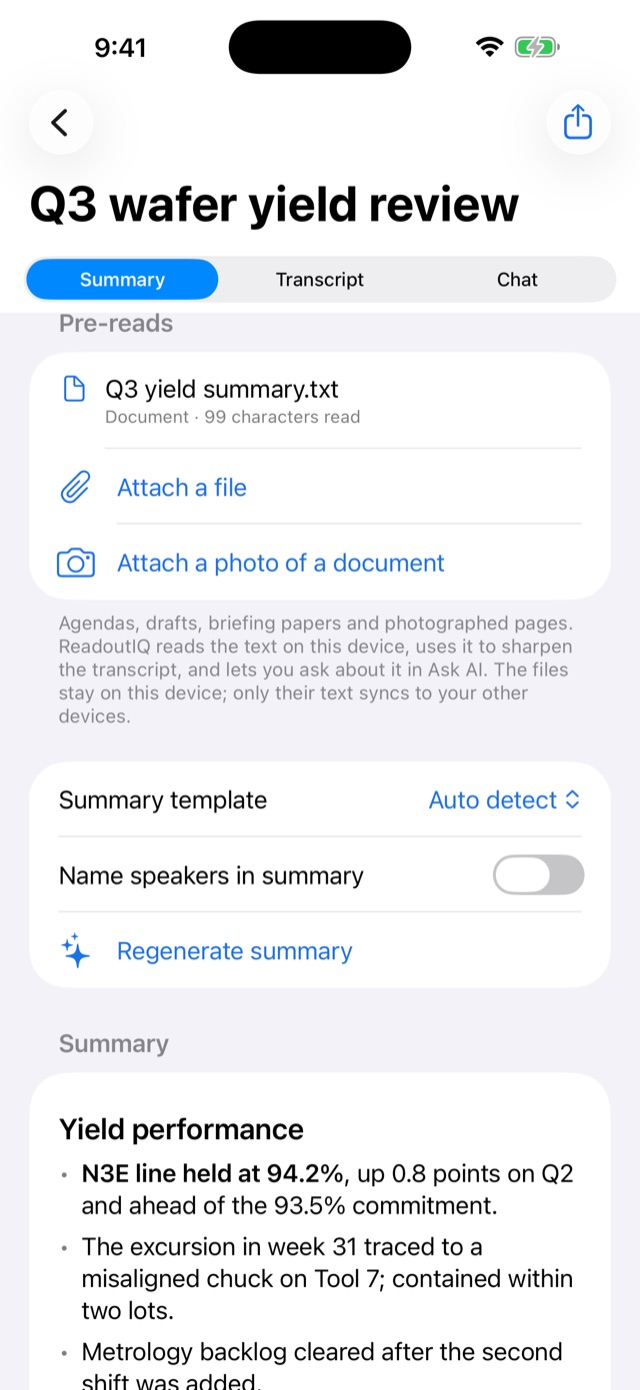
- Summary: the minutes, in topic sections with the figures and notable quotes kept, and the action items inline. The Summary template picker changes the emphasis for a meeting, speech, talk, interview or lecture; tap Regenerate summary after changing it. Turn on Name speakers in summary to say who said what. Under Pre-reads, attach an agenda or briefing paper, or a photo of one: ReadoutIQ reads its text on your device to sharpen the transcript, and you can ask about it in Chat.
- Transcript: everything that was said, in timestamped passages. Tap a timestamp to hear that moment. You can search it and correct any text in place.
- Chat: ask anything about this meeting.
Both Summary and Transcript have Play audio for the original recording.
5Name the speakers
ReadoutIQ separates voices on your device and labels them Speaker A, Speaker B and so on.
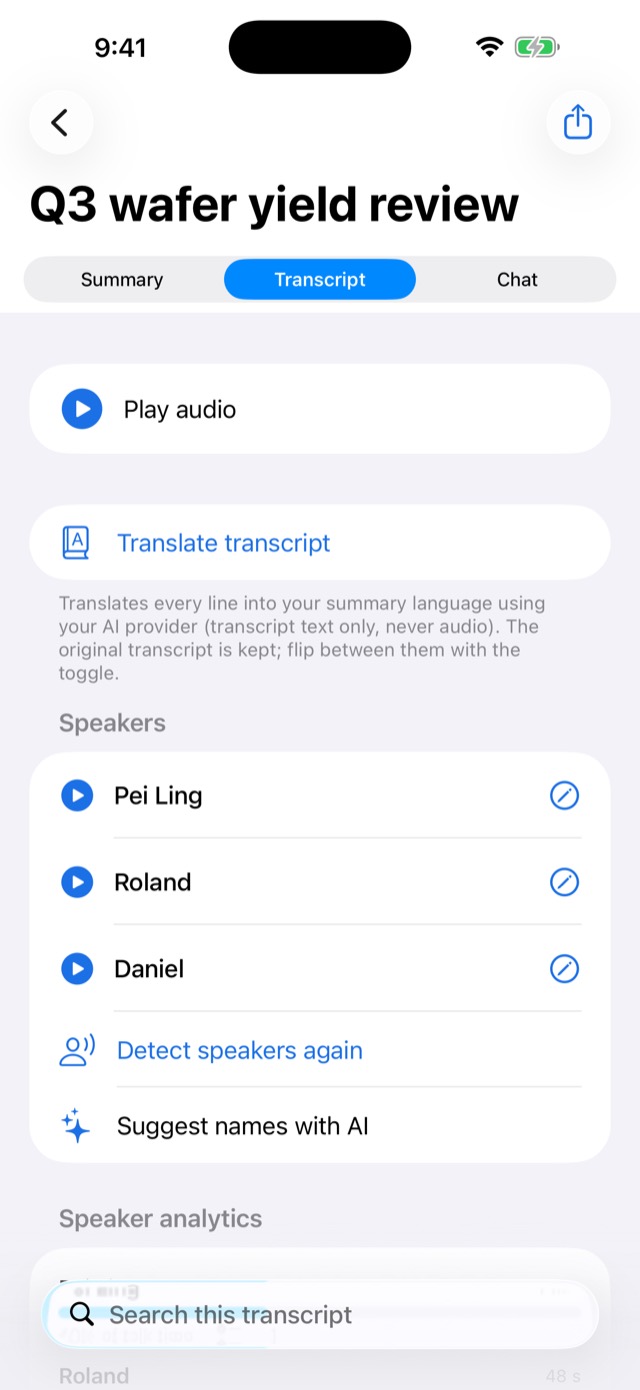
- On the Transcript tab, open the Speakers panel.
- Tap play beside a speaker to hear their longest passage, then tap the pencil to give them a name. Tapping a blue speaker chip in the transcript does the same.
- Or tap Suggest names with AI. Nothing changes until you accept a suggestion, one at a time or all at once.
Once you name a voice, ReadoutIQ remembers it on that device and suggests the name when it hears the same person in a later meeting. It never renames anyone without your say-so. With speakers named, you also see each person's talk time, questions and commitments.
6Send and share
Send the action items where you work
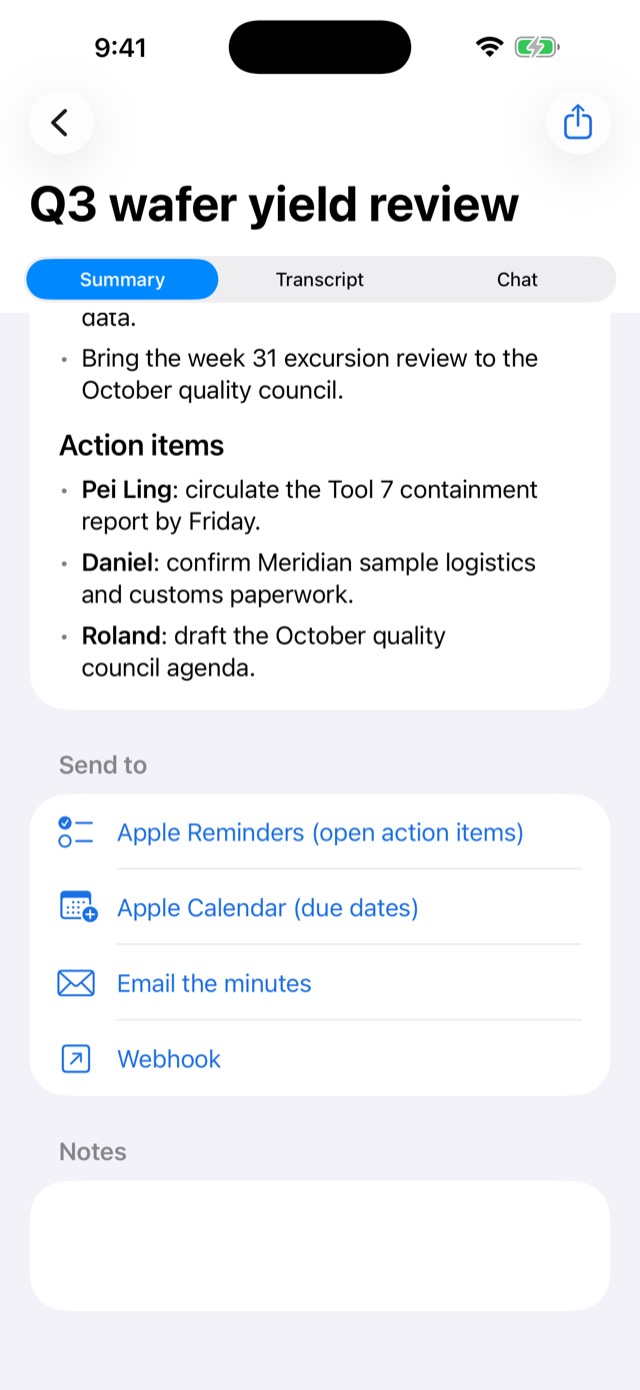
Under Send to on the Summary tab, push open action items to Apple Reminders, due dates to Calendar, the minutes into an email, or the whole meeting to a webhook you set up in Settings for a CRM or automation tool.
Share a copy
Share Summary, at the top left of a meeting, exports the minutes or the transcript as PDF or text, or the audio file. On iPhone and iPad that opens the share sheet for AirDrop, Mail or Files; on the Mac you choose where to save it. Add your company name or a confidentiality notice to every export under Settings, Export header and footer.
7Find anything later
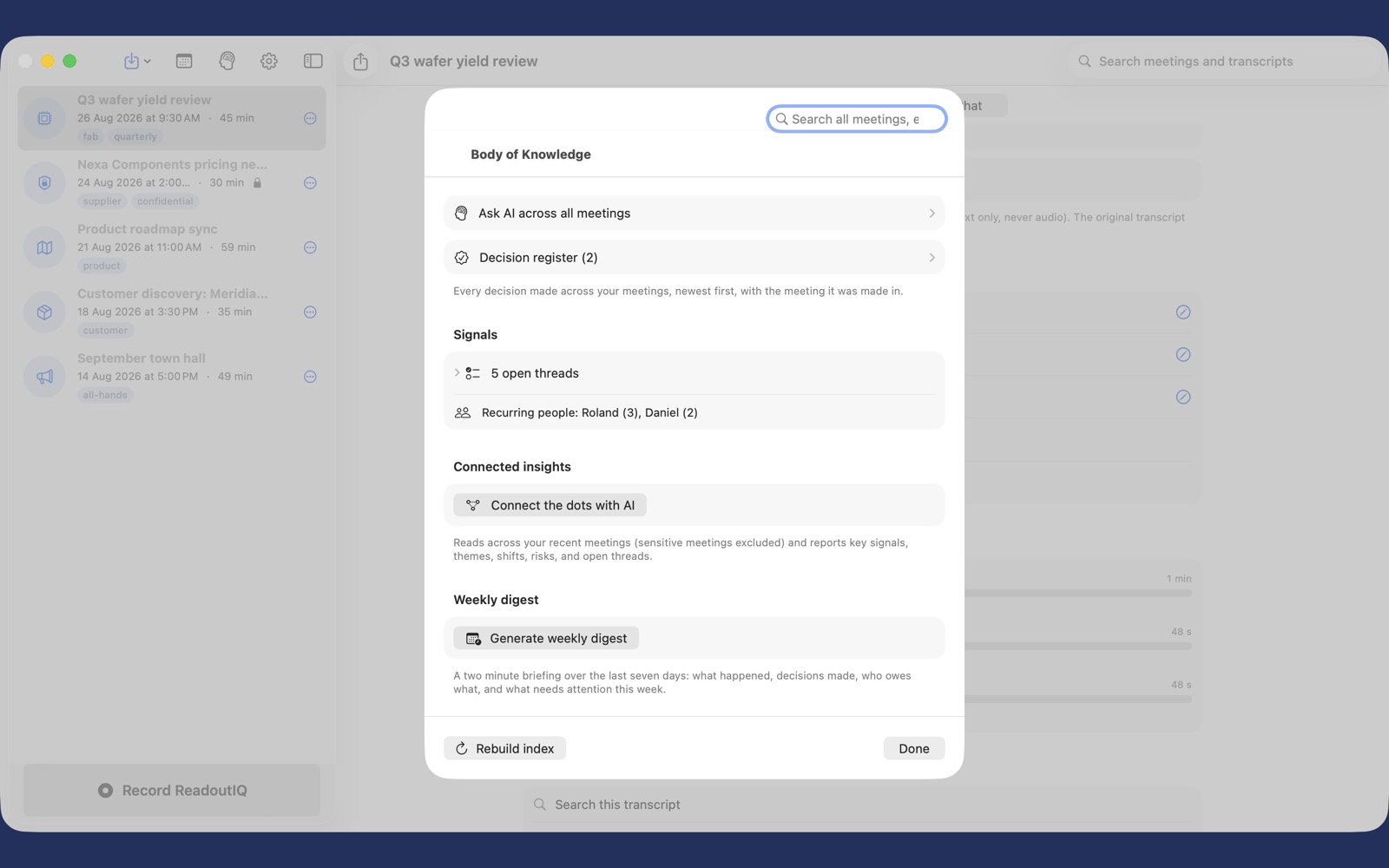
The brain icon opens the Body of Knowledge, a memory across all of your meetings.
- Search every meeting by meaning, such as “what did we decide about the September summit?”. Search runs on your device.
- Signals: open threads (who owes what, and when), and the people and topics that keep coming up.
- Decision register: every decision from every meeting, newest first, each linked to the meeting it came from.
- Weekly digest: a two-minute briefing on the last seven days.
- Connect the dots with AI and Ask AI across all meetings for themes, risks and answers that span many meetings. Meetings marked Sensitive are always left out.
To tidy your list, press and hold a meeting, or tap its three dots, to Rename, Edit Icon, add Tags, Delete or Select several. The search field at the top matches titles, transcripts and tags.
8Import a recording
Already have a recording? Tap the import button (an arrow into a tray) and choose an audio file, or paste a direct audio URL. It is transcribed on your device like any other meeting.
Apps cannot download YouTube pages. Play the video on your Mac and record it with System audio instead, or import a saved audio file.
9Keep it private
- Turn on Sensitive meeting for any meeting, and its content is never sent to any AI service.
- Only text ever goes to your AI service, and only when you use an AI feature: the transcript and your notes, plus any pre-reads and a linked calendar event's title, location and attendees. Never audio.
- Your API keys stay in your device's Keychain.
- Recordings stay on the device that made them. Settings, Audio backup copies them to your own iCloud Drive, only if you choose to.
- Settings, Sync keeps meetings, transcripts and minutes in step across your devices through your private iCloud. Audio stays where it was recorded. Reopen the app after turning it on.
- Settings, Export your library writes a complete copy of everything to a place you choose. Import a library brings one in, including from ScribeIQ, and only ever adds.
The Privacy Policy has the detail.
10Troubleshooting
- No transcription while recording
- Check the timer is counting, which means ReadoutIQ has microphone permission, and that grey live text appears. If a recording ends up empty, it is kept under Settings, Recovery, ready to recover from its audio.
- Recording paused on its own
- Another app is using the microphone, and nothing is recorded until it stops. Turn off its microphone feature, such as live translation, then open ReadoutIQ and tap the circle if it has not carried on by itself.
- System audio records nothing on the Mac
- Allow ReadoutIQ under System Settings, Privacy and Security, Screen and System Audio Recording, then quit and reopen the app.
- AI features fail
- Check the selected AI service has a key saved and a valid model. The error message names the exact cause.
- iCloud is not syncing
- Check Settings, Sync, Status on both devices. Both must say Active, use the same Apple ID, and have been reopened since sync was turned on.
Email angweeseng@hotmail.com. Replies come from the developer.